EV Accessory Order
Hindi Video Tutorial -EV Accessory Order
EV Accessory Order
OVERVIEW
EV Accessory Order is a process of placing the sales order
separately for the vehicle accessory/Part in the branch. This option allows
user to directly allocate the Part against the successful Vehicle purchase made
by the customer. EV Accessory Sale Order is a contractual document that gives
detailed information about the Customer and Items or Service he had purchased
previously and what will be the supportive part he can get along with the
vehicle. The Accessory Sale Orders can also be printed to provide an
acknowledgement copy to the customer.
PROCESS FLOW To access EV Accessory Order
In the Excellon application, go to
Electric Vehicle
module → Vehicles → Sales → Accessories → EV Accessory Order → New
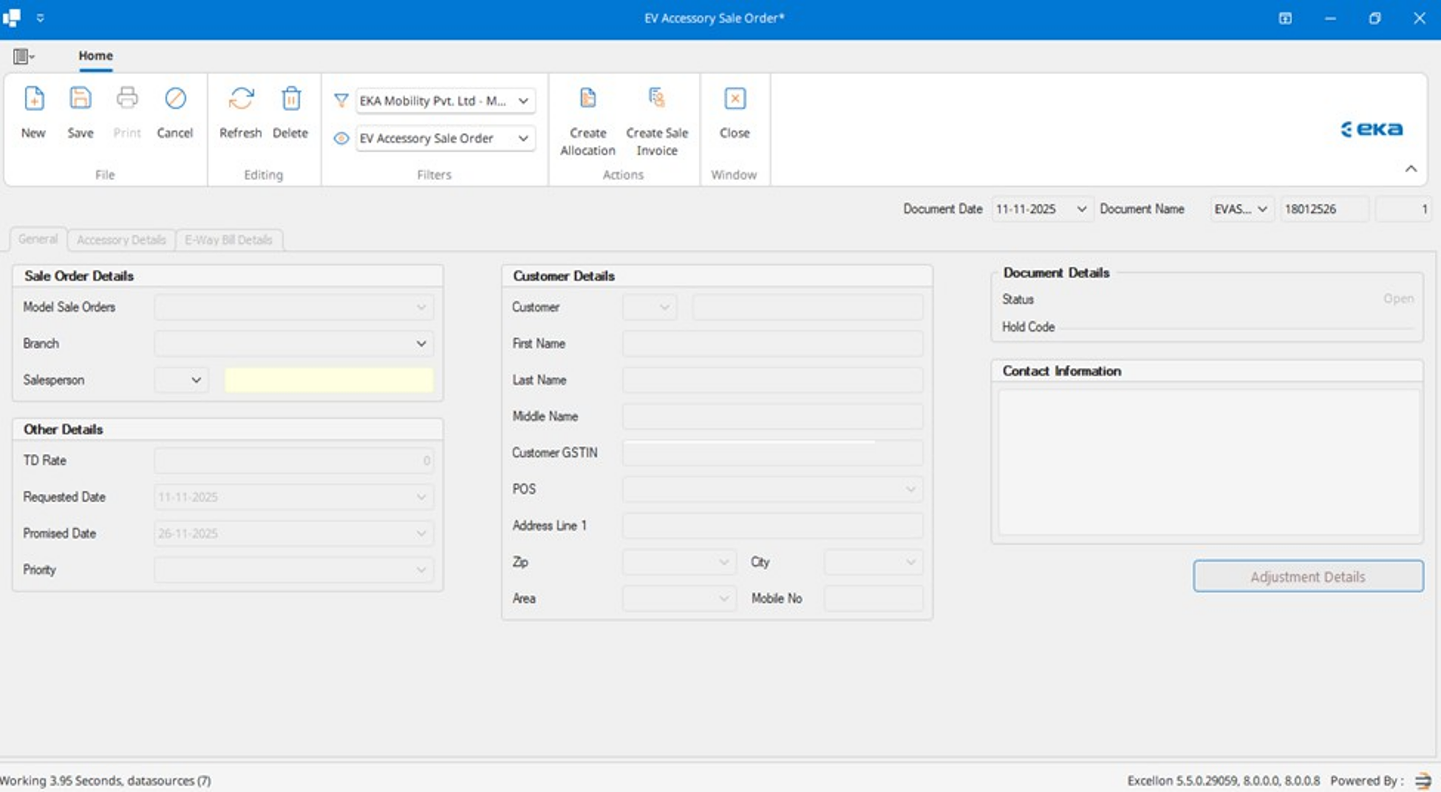
User Interface (General)
Field Description (General)
Model Sale Orders: Select the Model Sales order to create
the Sales Order
Branch: Select Branch to create enquiry
Salesperson: Select the salesperson
Customer: Search the customer
First Name / Middle Name / Last Name: Enter the customer name details
POS: Select the Point of Sales
TD Rate: Enter the Trade Discount Rate
Requested Date: Select the date of request for purchase
Promised Date: Select the date of promise for vehicle delivery
Priority: Select the Priority
Address / Mobile No / Area / Zip / Email / City: Enter customer contact and
location details
Accessory Details
Field Description (Accessory)
Accessory Name: Select the accessory name
HSN Code: Enter the HSN code
UOM: Enter the Unit of Measurement
Priority: Select the Priority
Requested Date: Select the requested date of the vehicle
Promised Date: Select the Promised date of delivery of the vehicle
Qty / Cancelled Qty: Displays the quantity and cancelled quantity
Rate: Displays the rate
E-Vehicle Type: Enter the type of E-vehicle
Scheme: Displays the scheme
Discount: Enter the amount of discount
Amount: Total amount to be Paid
User Interface (E-Way Bill details)
Field Description (E-Invoice Details)
Reverse Charge: Select if the Reverse Charge is Applicable
Transaction Type: Select the type of transaction
Shipping Address: Enter the shipping Address
Shipping to GSTIN: Enter the shipping to GSTIN
IGST on Intra: Enter if the GST on Intra is Applicable
Shipping Legal Name: Enter the Shipping Legal Name
Shipping to Trade Name: Enter the Shipping to Trade Name
Field Description (E-Way Bill)
Transporter ID/GSTIN: Write important Notes if any
Transporter Name: Enter the Name of a transporter
Transportation Mode: Enter the Mode of Transportation
Transportation Distance: Enter total transportation distance in Km
Transportation Document No: Enter the transportation Document No.
Transport Document Date: Enter the Transport document date
Vehicle No: Enter the vehicle Number
Vehicle Type: Enter the type of a vehicle
Thank You!
Related Articles
EV Accessory Allocation
new incogneto HINDI VIDEO TUTORIAL:-EV Accessory Allocation play video EV-Accessory-Allocation OBJECTIVE / PURPOSE Purpose of this SOP: To provide a clear, step-by-step guide for creating EV-Accessory-Allocation in the Excellon What is an EV ...EV Accessory Invoice
HINDI VIDEO TUTORIAL:- EV Accessory Invoice <br><br> OVERVIEW EV Accessory Sale Invoice is a billing document that keeps track of EV items sold to the customer. EV Accessory Sale Invoice can be converted directly ...EV Sales Invoices
HINDI VIDEO TUTORIAL:- EV Sales Invoices <br><br> EV Sales Invoices OBJECTIVE / PURPOSE This SOP provides step-by-step instructions for creating EV Sales Invoices in the Excellon application It ensures a ...EV Vehicle Purchase Order
HINDI VIDEO TUTORIAL:-EV Vehicle Purchase Order Dealer Purchase Order OVERVIEW Dealer Purchase Order - An EV Purchase Order (EV PO) is the official order created by a dealership to purchase electric vehicles from a supplier or OEM (Original Equipment ...How To Create EV Part Purchase Order
Hindi Video Tutorial - How To Create EV Part Purchase Order How To Create EV Part Purchase Order EV Part Purchase Order Dealer Purchase Order - An EV Part Purchase Order (EV PO) is the official order created by a dealership to purchase spare parts ...